
Install firmware
Vesper bundles no firmware. You supply the official PS5UPDATE.PUP, and the app installs it in one menu step.
One menu item turns installed firmware into a running PS5 interface on your desktop.
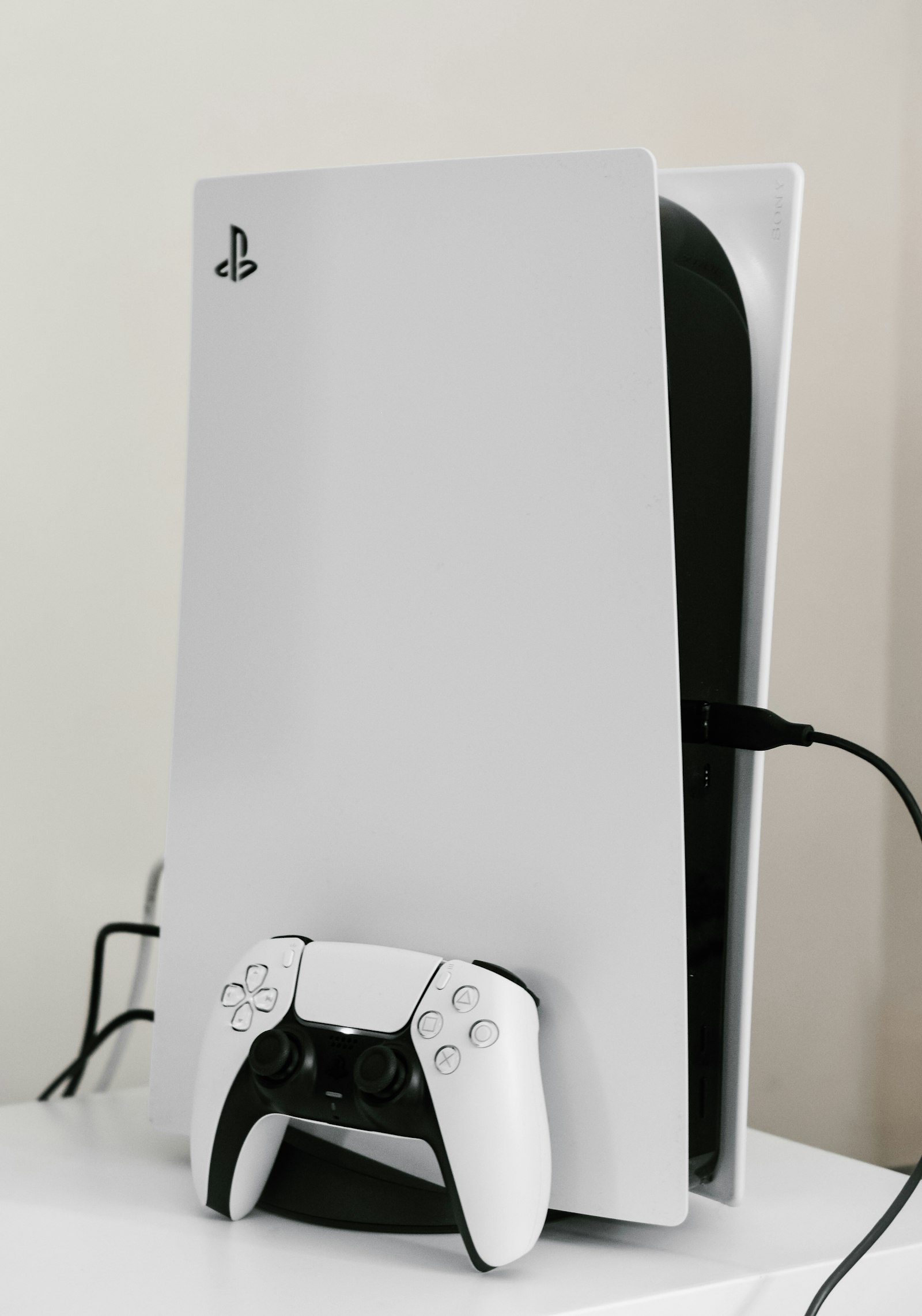
Installing firmware only puts the system software on your disk. Booting it is what actually starts the PlayStation 5 interface, running inside a window on Windows.
Choose File, then Boot system software. The first boot is the slowest because the emulator is doing first-run work that will not repeat.
The familiar system interface appears and responds to a connected pad or to keyboard and mouse. The status bar along the bottom of the launcher shows your renderer and any controller Vesper has found.
From there you can move on to adding the games you own. Until some are added there is nothing of yours for the interface to list.
You boot it each time you start a session, but the slow first-run work happens only once.
An out-of-date graphics driver is the most common cause, since Vulkan support lives in the driver. Update it, then try the newest Vesper build.
No. The system software has to be running before your own titles can launch inside it.
Free installer for 64-bit Windows 10 and 11.