
Boot system software
One menu item turns installed firmware into a running PS5 interface on your desktop.
Own your library, then show Vesper where it lives. The launcher supplies no games of its own.
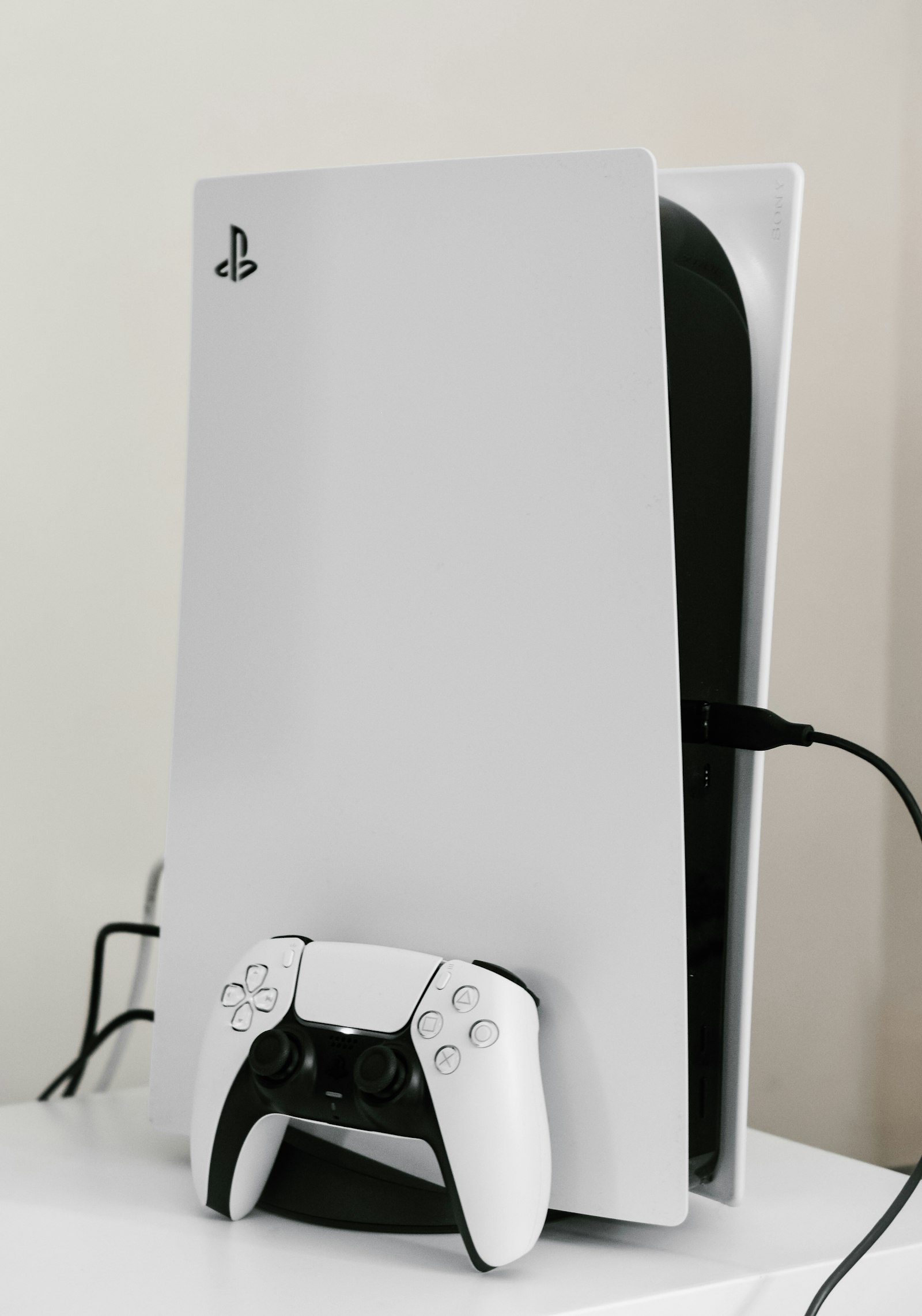
Each tile then carries the compatibility chip from the dashboard, so you can see where a title stands before you press start.
This is the part we will not soften. Vesper does not include, sell, or stream games, and the 400+ entries in the app are status records rather than anything downloadable.
Use Vesper only with PlayStation 5 games you already own. That is the condition the whole project is built on, and the reason there is no store anywhere in the interface.
No. It includes, sells, and streams nothing. You add the PlayStation 5 games you already own.
Compatibility records with a Stable, Beta, or Test chip each. They tell you how a title behaves; they are not copies of it.
Yes. Vesper is a launcher for your own library and nothing else.
Install and boot firmware first. Without system software running there is nothing for a title to launch inside.
Free installer for 64-bit Windows 10 and 11.